BPMS Help Manual for PDH Account
Last updated: November 20, 2025
BPMS >PDH Account > Dashboard
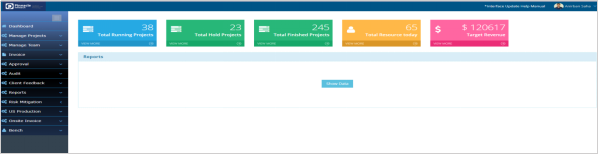
PDH Dashboard shows total number of running projects, finished projects, total resources and total target revenue for the current month till the date. It also list the last working days Log status of team members and manpower projection for upcoming five days.
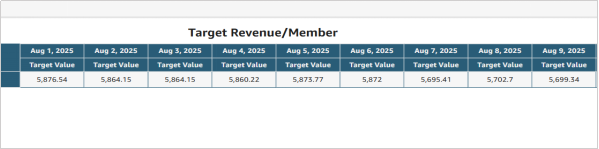
PDH Click on “Target revenue” on top right corner to view the details of daily target revenue of all members in the team.
Project Planning :
BPMS >PDH Account > Manage Project > Project Planning
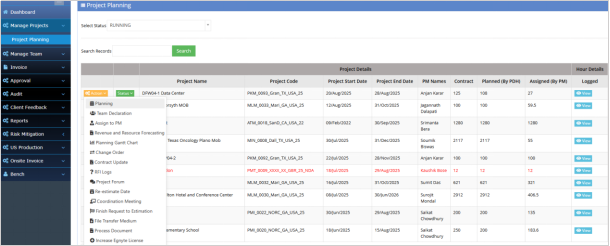
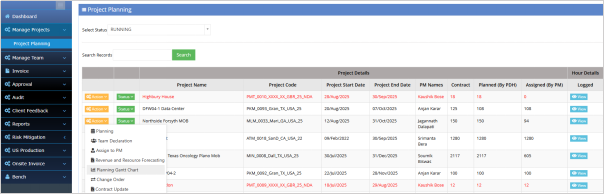
PDH can view all the Projects published by Estimation team with Contract hours, Start date, End date etc. Click on Action dropdown and select “Planning” to plan the Project.
Click on “Add New Building” to create new Building with some specific hours. For a specific building, you can create or add multiple levels/floors by clicking on “Add/View Floor”, but not beyond the hours defined for that building.
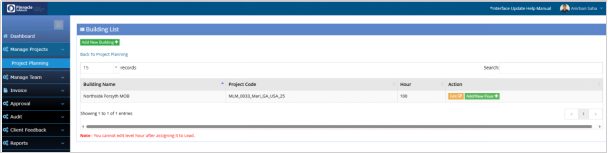
After defining Building and Level, the PDH needs to assign the level/floor to PM. The hour defined on a selected level/floor automatically filled and cannot be modified.
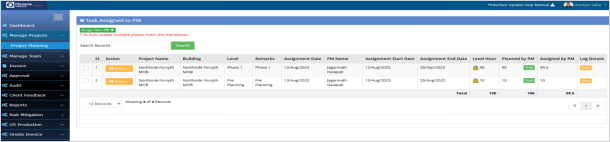
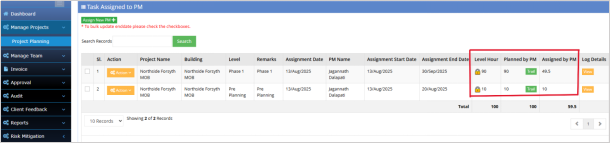
After assigning hour to PM it will show Building, Level, Billed hour, planned hour, PM names, etc. The billed hour is locked and planned hour can be re-estimated by PM.
Team Declaration Module:
BPMS >Manage Project > Project Planning > Action Dropdown > Team Declaration
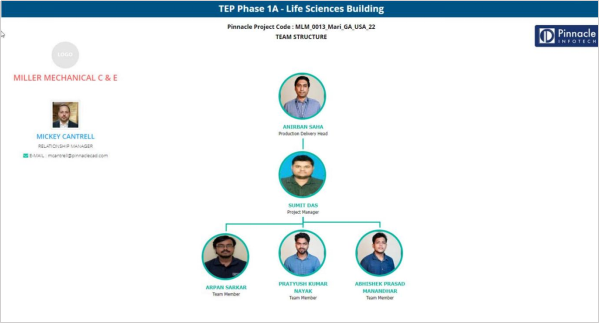
PDH has to declare team for every Project. Select the PM from the drop-down list and tag the team members by checking the check boxes. Only the declared members are available during activity assignment by Project Managers. Team structure chart will be generated as per the team declaration. PDH has to check the check box to request to IT for folder allocation. An email intimation will be sent to IT along with the member details for folder permission.
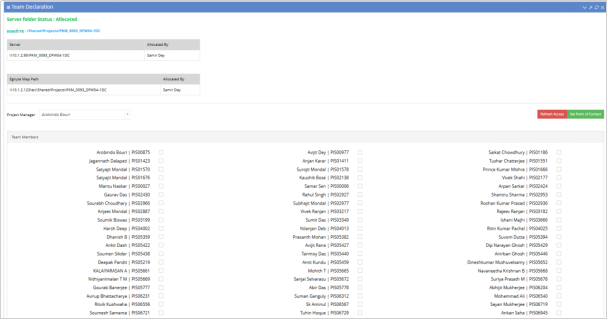
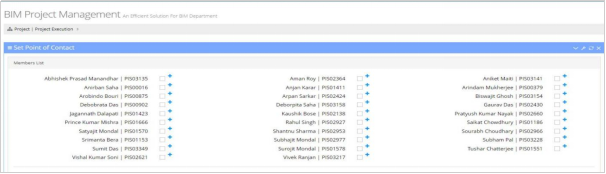
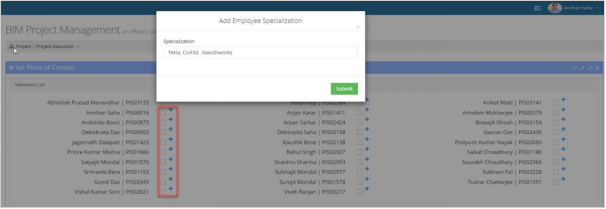
Click on “Set Point of Contact” option to set multiple member as point of contact. Click on “+” icon to add multiple specialization for a specific member.
Project Closure Module :
BPMS >Manage Project > Project Planning > Status Dropdown > Finish
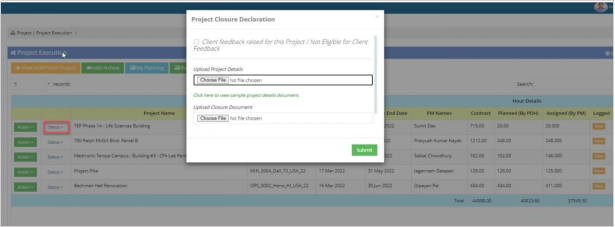
Click on status drop-down and change the status of the Project. To Finish a Project, PDH has to upload “Project Closure” and “Project Details” document. Also, Client feedback should be raised by feedback team before finish any Project by PDH.
Standard Rate Module:
The Project Standard Rate module serves as the benchmark, which needs to be defined by PDHs during the execution of each project. The standard rate corresponds to the hours allocated for each worktype used in the project.
During activity assignment by the PM, when selecting a worktype, the system will verify the defined standard hours and prevent the user from entering hours that exceed the established limit.
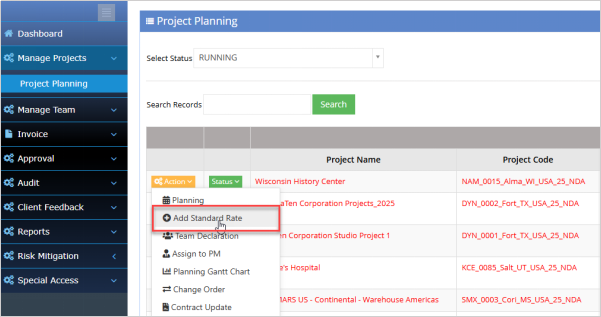
BPMS > PDH Account > Project Planning > Action Dropdown > Add Standard Rate
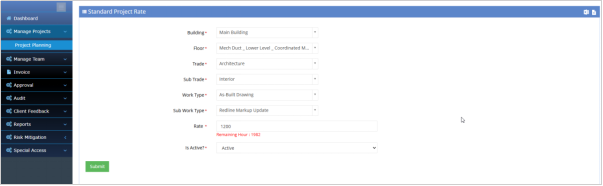
PDH have to select the building, levels, trade, sub-trade, work type & Sub worktype and Standard rate(hours) for the respective Project.
PDH can request Edit approval to FH if there is any revision on freezed standard values.
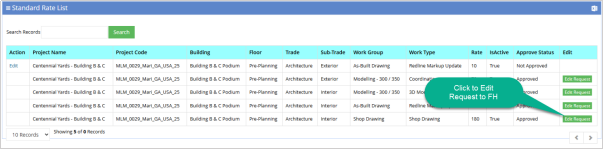
FH will have the option to permit the Edit access. Once permit it will be editable to PDH end.
Revenue & Resource Forecast Module :
Revenue and Resource forecast module can be used to forecast the total revenue that could be earned from the existing Projects and the required resources and hour that will require to achieve that.
The module is segregated into two parts:
Existing Projects Forecast
2. New Projects Forecast
1. Existing Projects Forecast:
This section is focused on forecasting revenue for projects that are already in progress.
Purpose: The forecast will be based on the remaining invoice amount, ensuring that no revenue forecast exceeds the value of what is left to be invoiced for the project.
Forecast Calculation:
The remaining invoice amount is calculated as:
Remaining Invoice Amount = Contract Amount - Invoiced Amount
The system uses this remaining amount to forecast the future revenue.
Restriction: The system ensures that the forecasted revenue for the project does not exceed the remaining value. This ensures that no over-forecasting occurs, which could lead to financial discrepancies.
2. New Projects Forecast:
This part focuses on forecasting revenue for new projects that are either in the planning stage or have recently started.
Purpose: To predict the potential revenue from upcoming new projects by uploading project details and values.
Forecast Calculation:
The forecast is generated based on the project value for each new project, as provided in the data upload.
Existing Project Forecast:
PDH Account > Project Planning > Action Dropdown > Revenue & Resource Forecasting
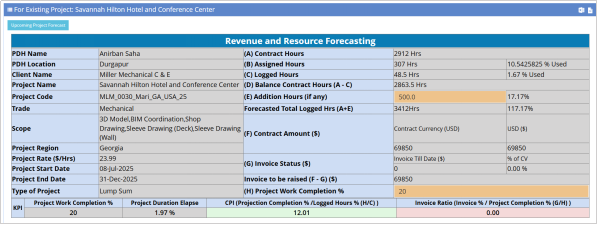
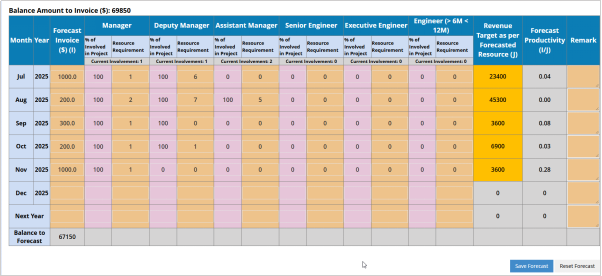
Click on “Revenue & Resource Forecasting” and it will be redirected to a page where all Project information is available. PDH has to fill the additional hours, actual work completion and upcoming months revenue for the selected Project. System will not allow to forecast more than the balance invoiced amount.
The Project specific report will be generated based on the data for each Project breakup.

Upcoming Project Forecast:
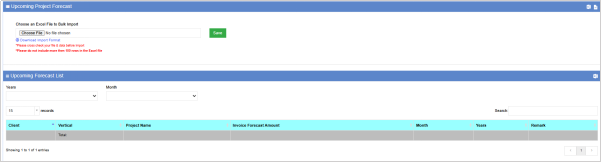
Click on the link “Upcoming Project Forecast” and download the import format. Fill the downloaded excel and upload to the System. System will save the data in a bulk.
Change Order Module :
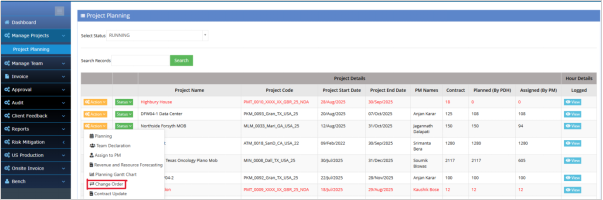
BPMS >Manage Project > Project Planning > Action Dropdown > Change Order
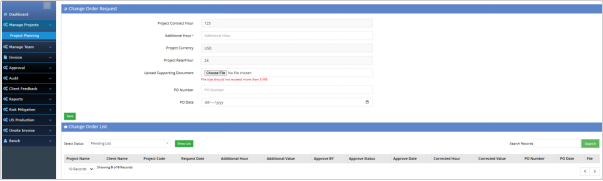
PDH can raise change order request to Estimation team for approval. In this case PDH has to fill the additional hours and Contract value of the Project as approved by Client. Once approved by Estimation team, It will reflect in the revised PAD sheet.
PDH can upload supporting documents for change order approval.
Contract Update:
BPMS >Manage Project > Project Planning > Action Dropdown > Contract Update
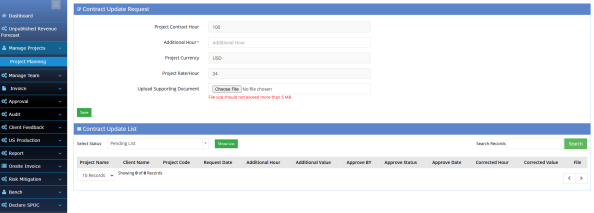
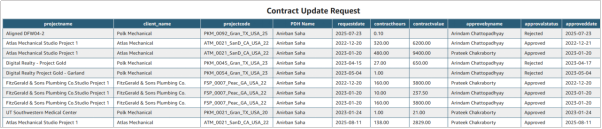
PDH can raise contract update request to Estimation team for approval. In this case PDH has to fill the additional hours and Contract value of the Project as approved by Client along with the supporting documents. Once approved by Estimation team, It will reflect in the revised PAD sheet.
RFI Logs:
BPMS >Manage Project > Project Planning > Action Dropdown > RFI Logs
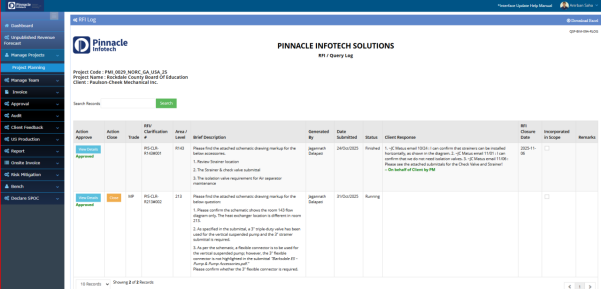
When the PM needs more information about a project, they submit an RFI through the portal. The client then responds with the requested details. Sometimes, clients may directly provide the information to the PM, bypassing the portal. In such cases, the PM manually enters the client's details into the portal.
The RFI log in the PDH account includes all the relevant information given by the client for each project. This ensures that the PDH has full access to every project detail, which helps in tracking and understanding the project's progress and client requirements.
Re-estimate Date:
BPMS >Manage Project > Project Planning > Action Dropdown > Re-estimate Date
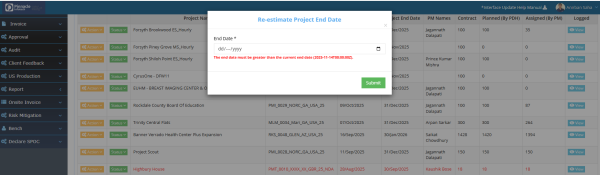
In the PDH account, the Re-estimate Date section allows the PDH to update the project's estimated end date when necessary.
Coordination Meeting Module :
PDH Account > Manage Project > Action Dropdown > Coordination Meeting
This module will help to keep track of the Client meeting records along with the cost of the meetings. Only the meetings approved by PDH will be added to the approved budget.

Finish Request to Estimation:
BPMS >Manage Project > Project Planning > Action Dropdown > Finish Request to Estimation
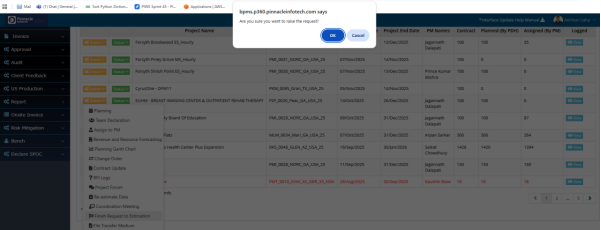
This section allows PDH to submit a request to the estimation team to mark a project as finished. By clicking the "OK" button, the request to finish the project will be raised.
File Transfer Medium:
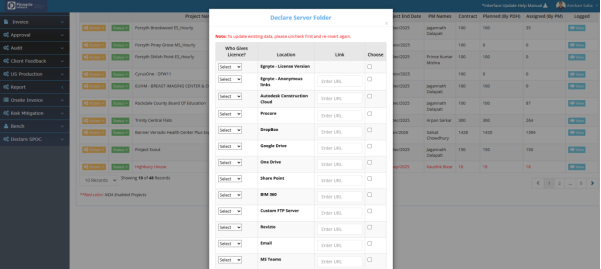
BPMS >Manage Project > Project Planning > Action Dropdown > File Transfer Medium
In this section, PDH needs to declare all the servers used for transferring files. PDH must select the relevant server and provide the required location and link.
Gantt Chart Report:
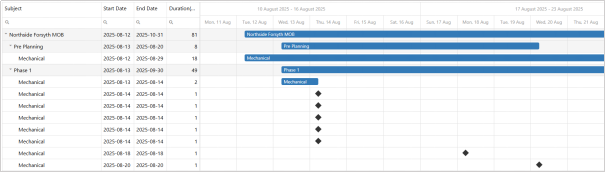
Manage Projects > Project Planning > Action Dropdown > Gantt Chart
MRM stands Report shows the Project planning in gantt chart format. Press “Ctrl” button and scroll to view in different format like daily, weekly, monthly, quarterly or yearly.
Bench Transfer Module:
This manual provides a comprehensive guide for managing bench resources, re-deployment
processes, and manpower requisitions within the organization. It outlines the steps for TM, PDH and
Functional Heads (FH) to effectively handle bench members. Additionally, it details the processes for
applying, approving, and tracking re-deployment applications to ensure smooth team operations
and optimal resource utilization.
Workflow:
1) PDH will request Functional Heads to transfer a member to bench.
2) PDH will fill a transfer form with performance rating, recommendation for redeployment and
suggested training for skill development for the respective members.
3) FH will review the request and on approval the member will be transferred to Bench.
4) For additional manpower requirement PDH needs to fill a requisition form with details like total
man power requirement & remarks.
5) Bench members can apply on manpower requisition raised by PDHs to join the respective team.
6) FH will get all the application and can approve to redeploy the bench member to the production
team.
7) FH can also redeploy any member from bench to any production team.
BPMS > PDH Account > Bench > My Team > Add Bench
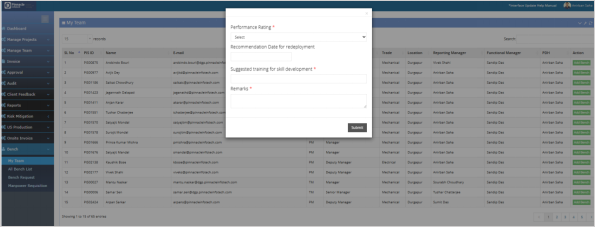
Before transferring employees to the bench, Managers must provide performance ratings for member, recommend redeployment date and suggested training for skill development if necessary. After submitting this data it will be available to Functional head account for review and approval.
PDH can check the status for the requested bench member’s from “Bench Request” page.
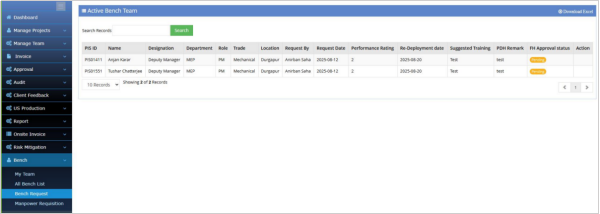
Once the Functional Head approves the bench request, the member will officially be added to the bench.
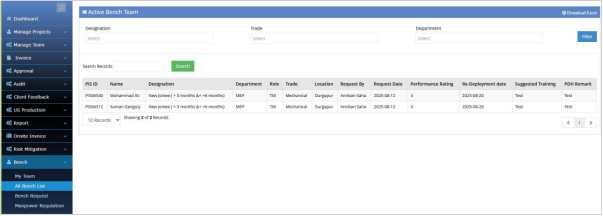
After approval, the member will be added to the "All Bench Members" page. This page provides a list of all bench members who are available and have been approved by the Functional Head.
Manpower Requisition (For PDH)
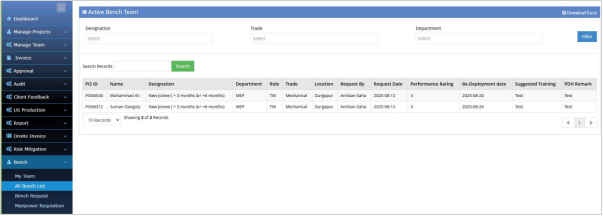
PDH can raise a manpower requisition if additional resources are needed. The PDH needs to fill in details like the number of members required, status of requisition, and remarks. After filling out this manpower requisition, it will be visible to all bench members, and they can raise a join request for it.
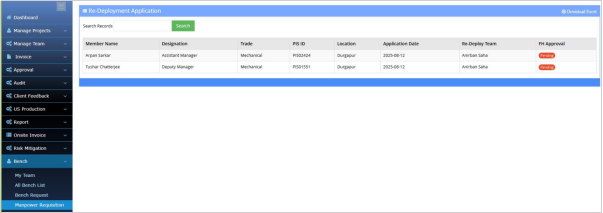
PDH can also check the list of applications applied by bench members by clicking on the 'View Application' button.
Permanent Resource Transfer Module:
BPMS >Manage Team > Employee Transfer
Select PDH from the dropdown list to permanently transfer the member to a PDH. PDH need to accept the member to include the member into the team.

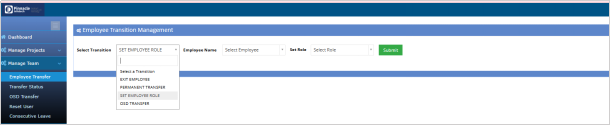
Set Employee Role:
PDH Account > Manage Team > Employee Transfer
PDH can set the role of a member as PM or TM.
Risk Mitigation Module:
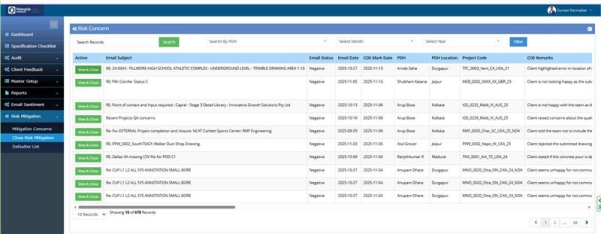
Risk Mitigation module helps to add the resolution for the Negative emails sent by the Client to the Production. Using this module PDH can add the resolution and Functional Heads can verify and close the concern.
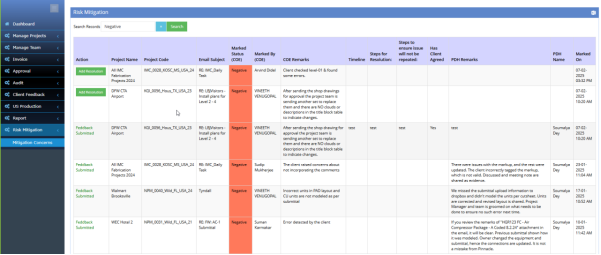
BPMS > PDH Account > Risk Mitigation
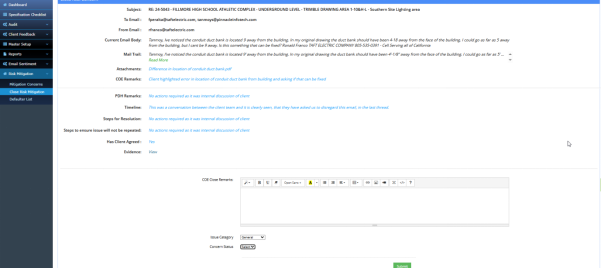
Whenever any Email marked as Negative by COE it will be available to the “Risk Mitigation” section. PDH have the option to “Add Resolution” with some fields like timeline, scope for resolution, Client agreed, Remarks etc.
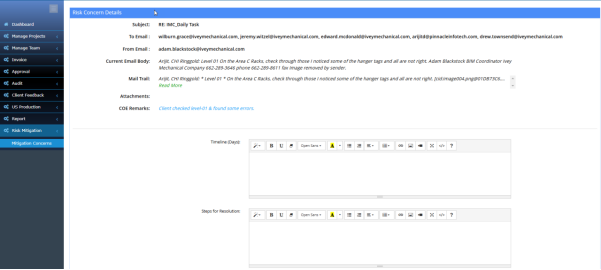
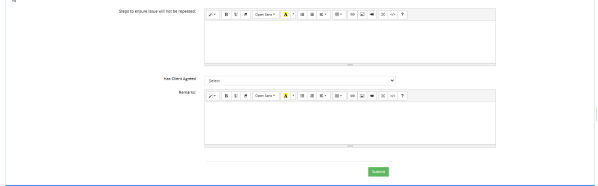
BPMS > COE Account> Risk Mitigation
After PDH submit resolution, it will be submitted to the COE. COE can review that and put some remarks over there and Close the concern.
Invoice Module:
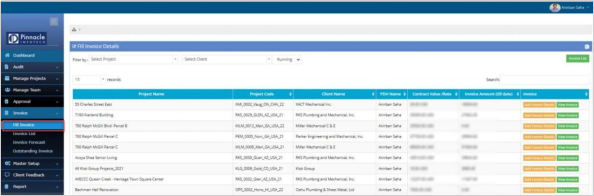
PDH Account > Invoice > Fill Invoice
Using this module PDH can fill invoice details for every Project.
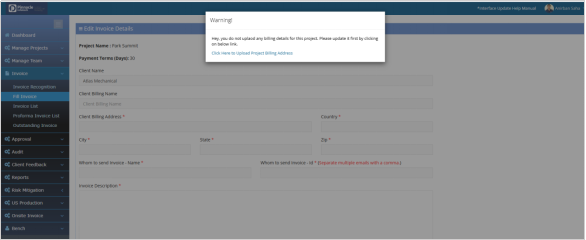
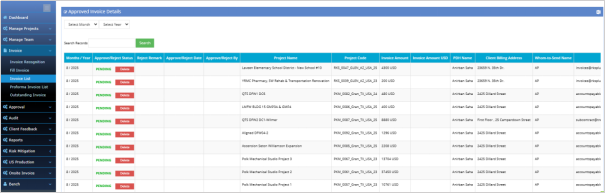
Click on “Add Invoice” and popup window will appear with all invoice related fields. The Invoice data will be submitted to Accounts department for approval. The approved Invoices will be considered as the Achieved revenue by PDH.
Click on “Invoice List “ to get all the invoices raised. Month wise filter is available to filter monthwise.
Outstanding Invoice:
PDH Account > Invoice > Outstanding Invoice
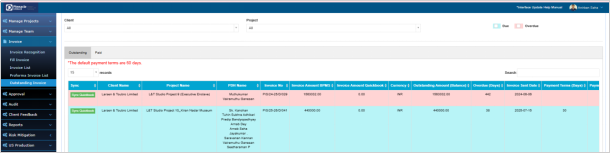
PDH can view the report of outstanding invoices client wise filled by Accounts.
Approval Module:
PDH Account > Approval > Backlog

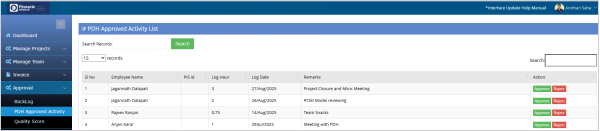
PDH Account > Approval > PDH Approved Activity
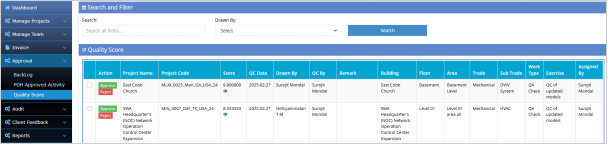
PDH Account > Approval > Quality Score
Audit Module:
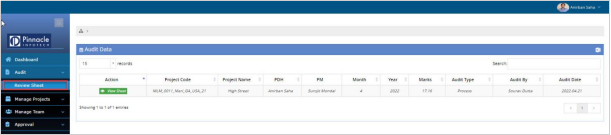
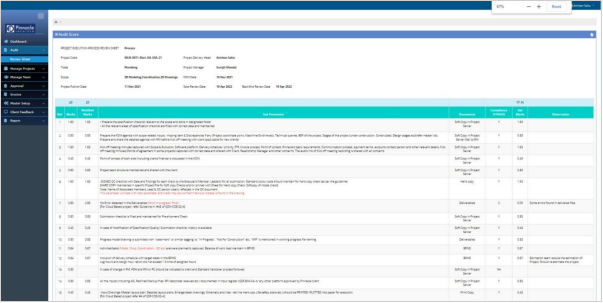
PDH Account > Audit > Review Sheet
Review sheet shows the audited Projects along with the PM, Months, Score etc. Click on “View Sheet” to view the details of Audited Projects and score. **need to change
Client Feedback Module:
PDH Account > Client Feedback > Verify Contact Person
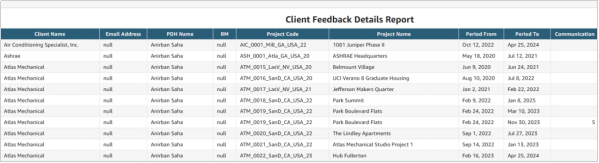
From this report PDH can verify and update(If required) the contact person & email for different Projects.

Log Report:
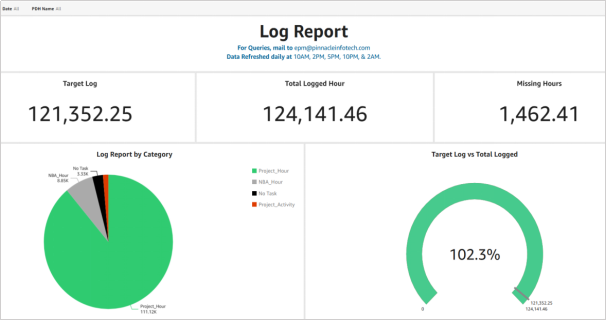
PDH Account > Reports > Log Report
PDH Log report shows the total log hours and missing hours in Pie chart format for a date duration. NBA pie chart shows the NBA log for different NBA categories.
Load Balance Report:
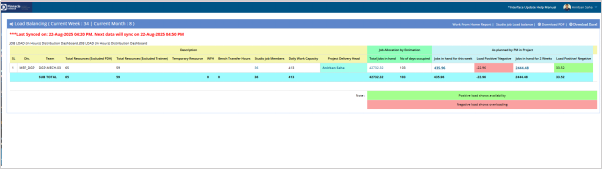
PDH Account > Report >Load Balance Report
Load Balance Report shows the availability and overloading of a team as per the work assignment.
Time Sheet:
PDH Account > Reports > Time Sheet
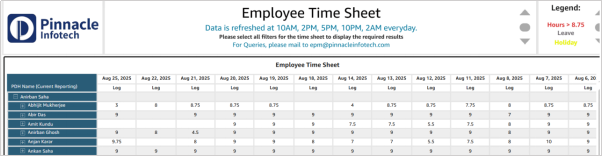
Employee Time sheet report shows the log report all Employees in the team with different log categories like Work log, Project Activity & NBA log.
Feedback List:
PDH Account > Reports > Feedback List
Revenue Target:
PDH Account > Reports > Revenue Target

Change Order list:
PDH Account > Reports >Change Order List
Change order report shows the list of change order for different Projects raised by PDH and status of the request sent to Estimation team.

Contract Update list:
PDH Account > Reports > Contract Update List
Raised Feedback:
PDH Account > Reports > Raised Feedback
MRM Report:
PDH Account > Reports >MRM Report
MRM stands for Monthly Review Meeting. This report shows the overall status of a Production team. Report shows the Project status, Revenue details, Outstanding Invoice details, Log details, Ongoing Project details, COE audit score, Client feedback etc.
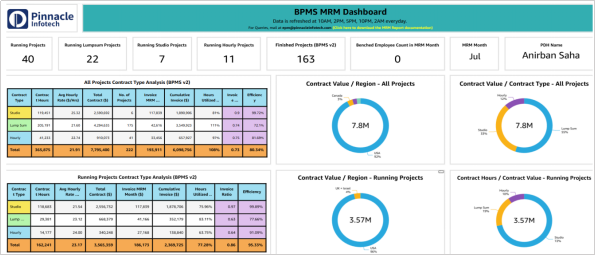
Running Projects: This table shows an overview of running projects with real-time metrics for project performance, including invoice completion and COE audit scores, allowing for better tracking and management of ongoing projects.

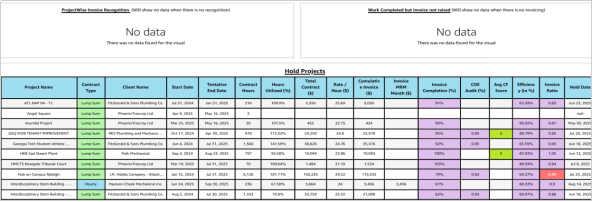
Hold Projects: This table presents information about projects that are currently on hold, highlighting key metrics such as contract hours, hours utilized, invoice completion, and efficiency. It includes details like invoice MRM month and the project’s hold date, which help monitor and analyze projects that are delayed or paused for various reasons.
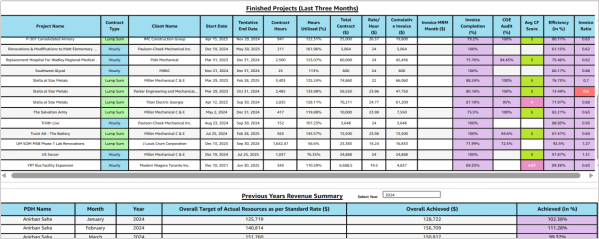
Finished Projects: This table lists finished projects and provides efficiency ratings and invoice ratios, making it easier to evaluate the effectiveness and financial performance of completed projects.
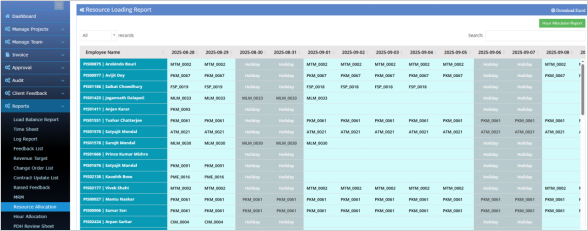
Resource Allocation Report:
PDH Account > Reports >Resource Allocation
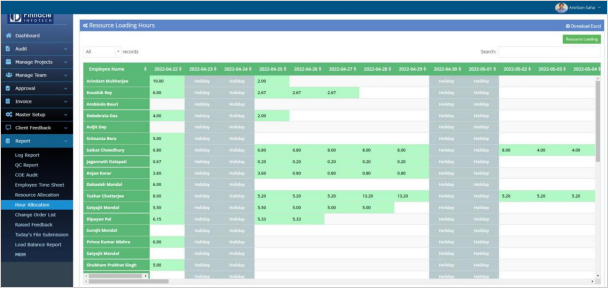
Resource allocation report shows day wise Project allocation to the members. It will help to view which member is involved in which Project day wise.
Hour Allocation Report:
PDH Account > Reports >Hour Allocation
Hour allocation report shows day wise hour allocation to the members in different Projects.
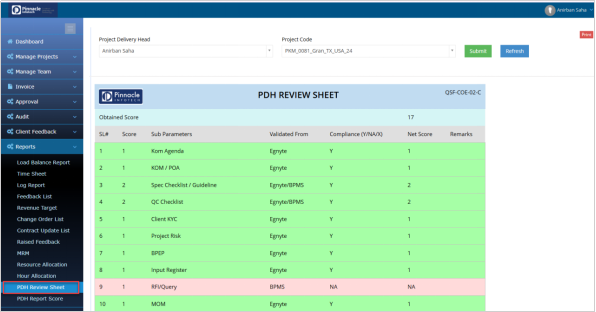
PDH Review sheet:
The System automatically checks the existence of Project files in Egnyte and BPMS and based on the rules set by COE and the score is generated for the respective Projects.
The score is freezed at the end of every month and only the running Projects are taken.
You can click the refresh button to sync the data with the server.
BPMS > PDH Account > Reports > PDH Review Sheet
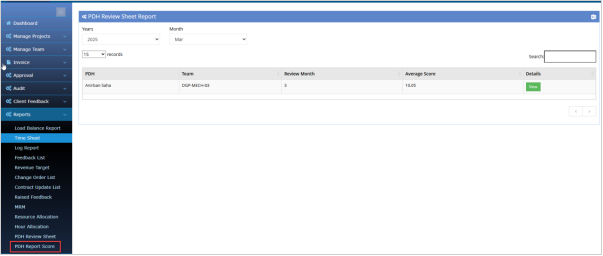
PDH Report score:
BPMS > PDH Account > Reports > PDH Report Score
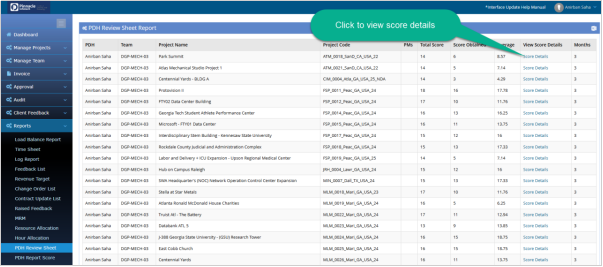
PDH can get the monthly average score from this option. To view the details of score click the “View” option that will redirect to the details page.
Click the “Score Details” option to view the score of all parameters obtained.
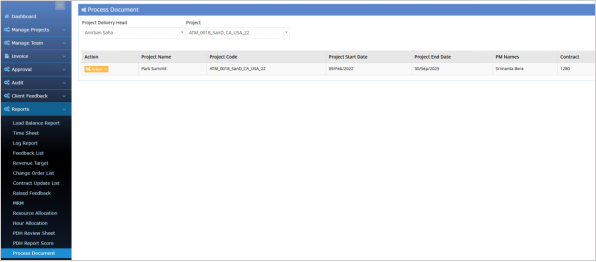
Process Document:
PDH Account > Reports > Process Document
Onsite Invoice Module:
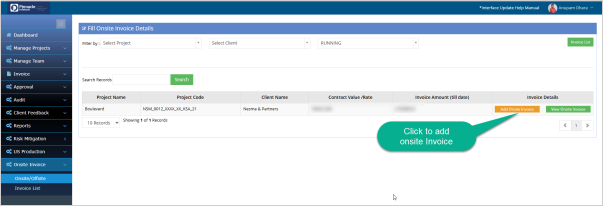
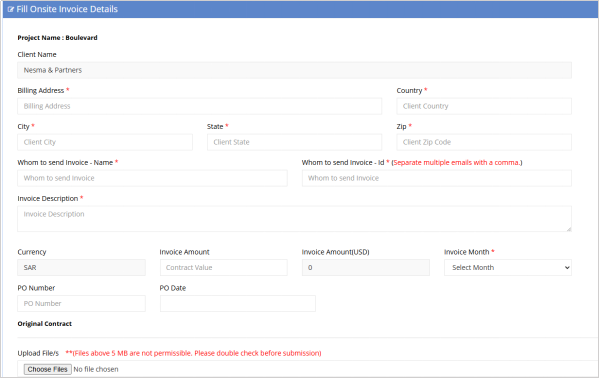
PDH can raise the Onsite Invoices through System which will be available to Accounts end for review and approval.
PDH Account > Onsite Invoice > Add Onsite Invoice
The list contains only the Projects having onsite scope marked by Estimation team.
SPOC Module:
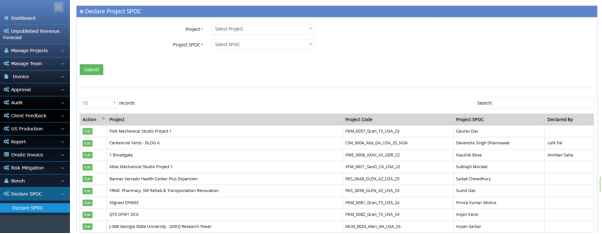
PDH Account > Declare SPOC > Declare SPOC
In the SPOC section, the PDH can declare themselves or the PM as the SPOC for a project. If the FH (Functional Head) has already declared the PDH for a project, the PDH cannot alter this declaration. PDH can edit and change the SPOC using the edit option.
To declare a SPOC for any project, one need to select the project from the dropdown and choose the person to whom the SPOC will be assigned. Once the SPOC is declared, it is final unless changed by the FH if the PDH made the initial declaration.