BPMS Help Manual for TM Account
Last updated: September 22, 2026
Team Member(TM) Account
Work Assignment Module:
TM Account > Log Maintain > Work Assignment
The Work Assignment module is designed for Project Managers (PMs) to manage and log project activities efficiently. The module helps track the project's expected start and end dates, completion percentage, and the logged hours for each task under various projects. Click on “View” button to view the logged hours.

Add Log:
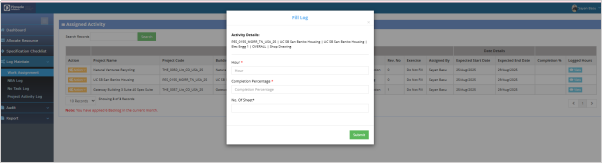
TM Account > Log Maintain > Work Assignment > Action Dropdown > Add Log
Clicking "+ Log" allows the PM to log hours spent on the assigned project and update the project's completion percentage. This is essential for tracking progress and ensuring that work is documented in real-time.
View Log:
TM Account > Log Maintain > Work Assignment > Action Dropdown > View Log
The "View Log" option lets the PM see the previously added logs for a particular project, including details on hours spent and completion percentage. It provides a clear history of the work done on the project.

RFI:
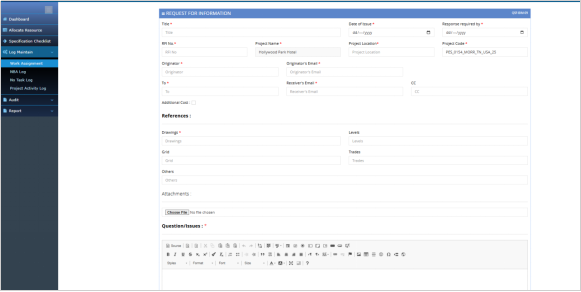
TM Account > Log Maintain > Work Assignment > Action Dropdown > RFI
The "RFI" option allows the PM to request additional information regarding a project. It is useful when there are gaps or unclear details that need clarification before proceeding further.
Backlog Request:
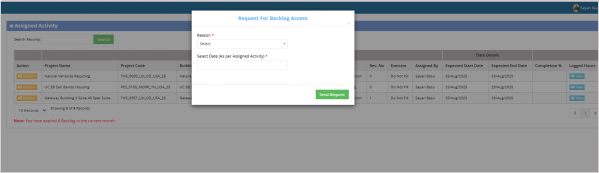
TM Account > Log Maintain > Work Assignment > Action Dropdown > Backlog Request
Clicking "Backlog Request" opens a form where the PM can apply for backlogs. The PM will need to select a reason for the backlog (such as delays, resource issues, or other causes) and specify the date
for which the backlog is being requested. This feature ensures that any delays or uncompleted tasks are documented and managed.
Complete:
TM Account > Log Maintain > Work Assignment > Action Dropdown > Complete
The "Complete" option allows the PM to mark a project as completed once all tasks have been finished. This signifies the end of the project's active phase and can help close the task officially in the system.
NBA Log Module:
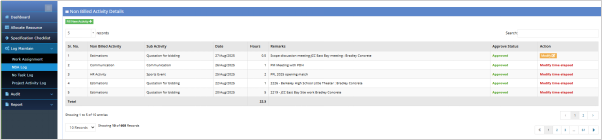
TM Account > Log Maintain > NBA Log
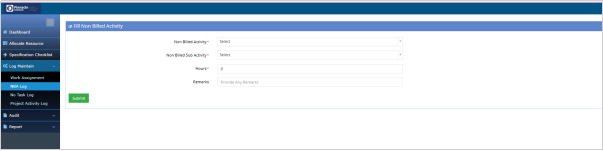
The Non-Billed Activity Log (NBA Log) allows users to record activities that are not billed to clients. The log also displays the approval status for each entry, helping track and manage non-billable work. Click on “Fill New Activity” to add new non-billed activity.
No Task Log:
TM Account > Log Maintain > No Task Log
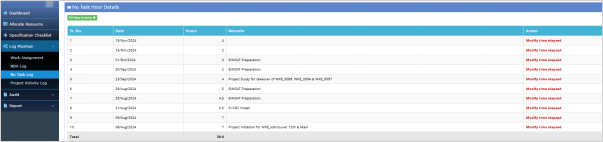
The No Task Log records hours spent on tasks that are not associated with specific assignments. Click on "Fill New Activity", to log hours spent on non-assigned tasks. This helps track time spent on activities outside active projects and ensures that all work time is documented.
Project Activity Log:
TM Account > Log Maintain > Project Activity Log
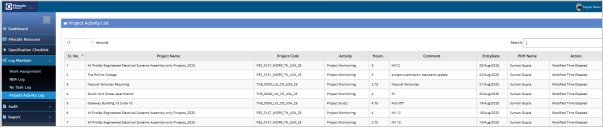
The Project Activity Log allows users to track and record hours spent on specific activities related to ongoing projects. The table lists details such as project name, activity, hours worked, and comments associated with each activity. This log helps track project progress and ensures that the time spent on various activities is recorded and managed effectively.
QC Allocation Process (PM/TM Account):
This OR Assignment Help Documentation outlines the updated workflow for managing Quality Control (QC) activities and Shop Drawing activities, designed to create a more streamlined, automated, and efficient collaboration between Team Members and Project Managers. By eliminating manual tasks such as tag management at the PM end, the process enhances overall efficiency, improves system performance, and ensures more accurate and reliable record-keeping.
Uploading Documents:
The Project Managers (PMs) will upload the Output Register files and QC Checklists (only for QC Requests) to the system.
Generating a Request (TM Account > OR Assignments > OR Details) :
Team Members have to select the eligible projects (projects where Output Registers are present) and Click on Show Report.
They can easily view the Output Registers and QC Checklists (applicable only for QC Requests) from the page.
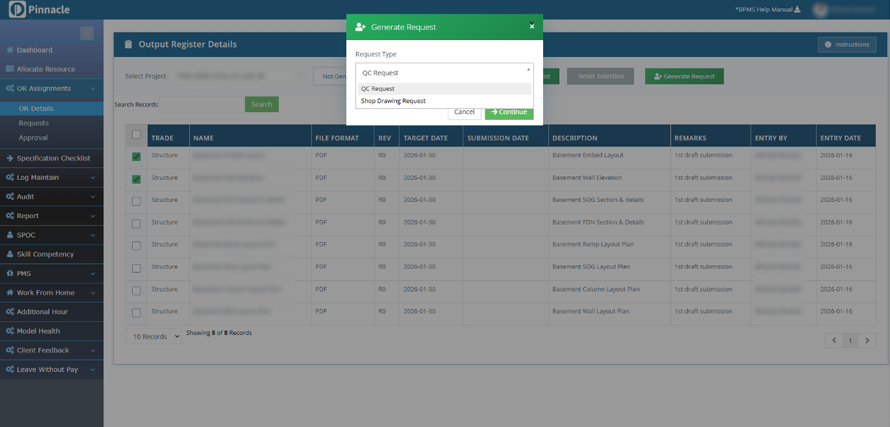
To generate a QC or Shop Drawing request, select the relevant Output Registers and click “Generate Request.”
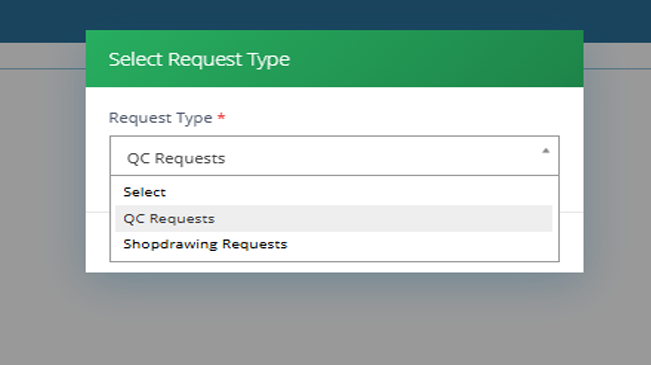
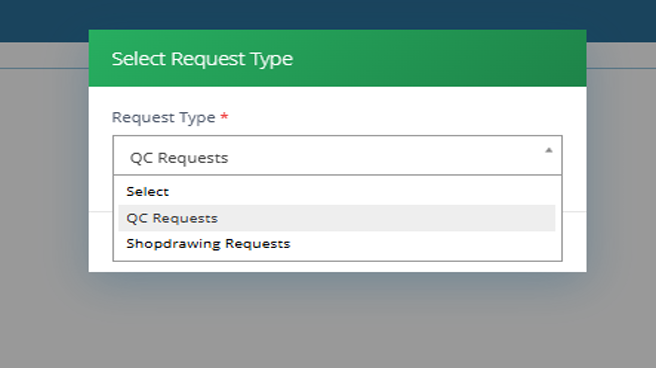
A popup appears requesting users to select the relevant request type (QC Request / Shop Drawing Request).
--> Update:
Users can now select the same file(s) for other requests via Generated Filter › Files › Generate Request.
Generate Request Form:
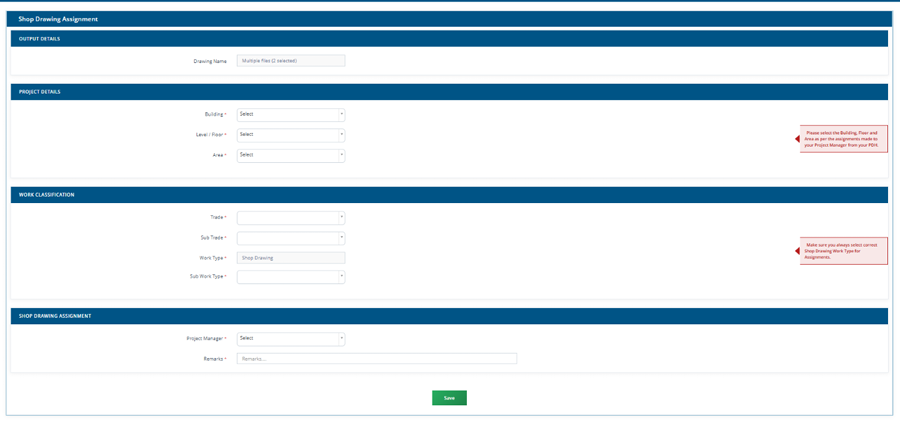
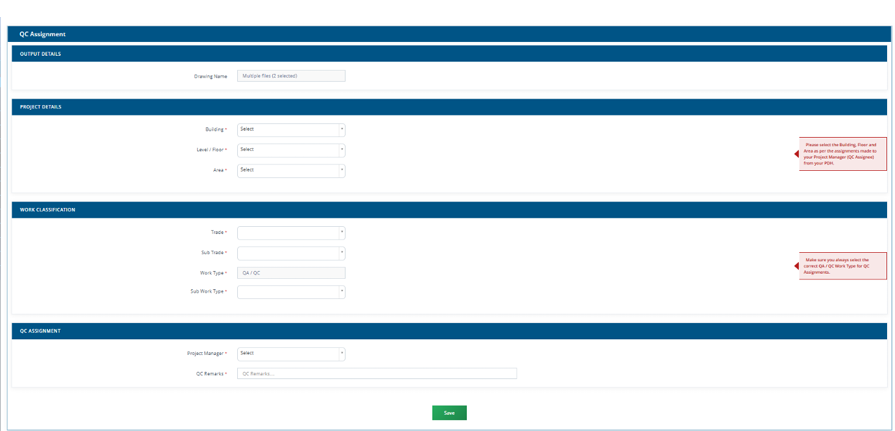
A request form will open with the following fields:
Drawing Name: shown for a single Output Register, or a count when multiple ORs are tagged.
Building Details: all buildings created for the project appear in the dropdown.
Floor Details: all floors relevant to the selected building appear in the dropdown. Area/Zone Details: all area/zones relevant to the selected building and floor appear in the dropdown.
Trade / Sub Trade / Work Type / Sub Work Type: all relevant categories and work classification data appear in the dropdown.
Remarks: Team Members enter relevant remarks.
Project Manager: the name of the Project Manager relevant to the project and team-structure hierarchy appears here.
--> Important Notes:
Team Members must ensure that the selected building, level and floor, and the Request Assignee (Project Manager), match the assignments already made from the PDH to the respective Project Manager. If it mismatches, the assignment cannot be approved. Team Members should always select the correct Work Types accordingly.
Tagging QC Checklists:
After the QC assignment has been saved successfully, the Tag Checklist popup appears, and users can automatically tag the relevant checklists and click Close.
Assigned Request:
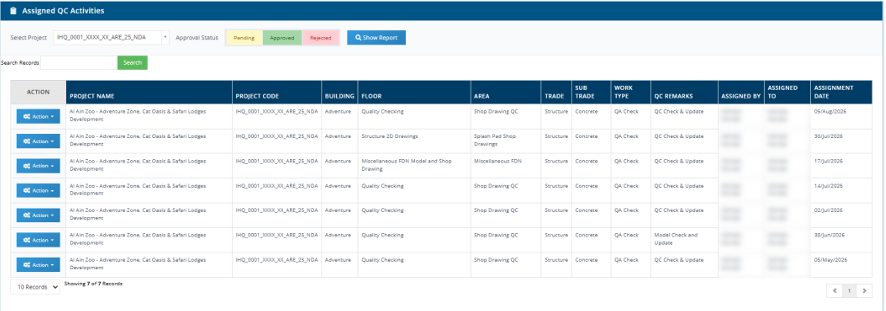
Team Members / Project Managers can view their Assigned requests from this page after selecting the relevant request type.
They can modify the activity, view tagged files and checklists, and tag checklists if missed while generating QC requests.
Once a request has been approved, it is no longer possible to modify the assignment.

Project Manager Approval (PM Account > OR Assignments > Approval):
Assignment Requests:
Project Managers can view their Assigned requests from this page after selecting the relevant request type.
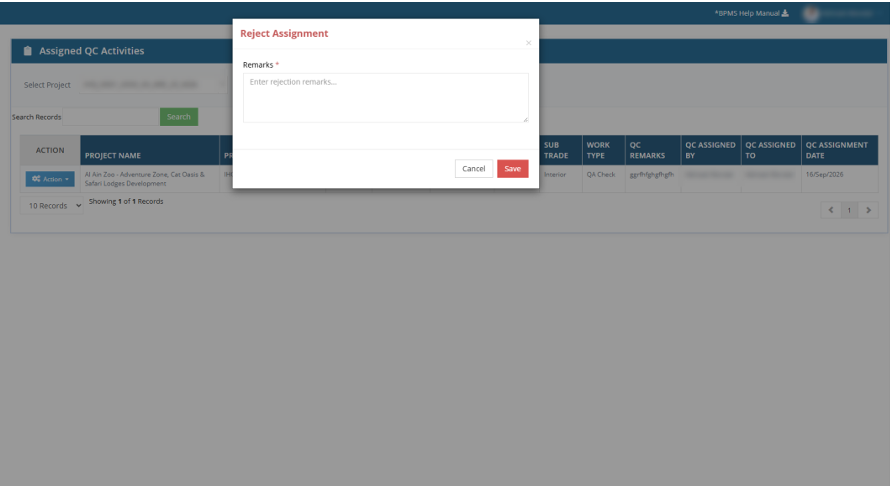
The Project Manager has complete authority to approve or reject assignment requests made by their respective Team Members.
If an assignment made by a Team Member seems unfit for the QC or Shop Drawing process, the PM can reject it by entering the specific reason for rejection.
Assignment: QA/QC Activity / Shop Drawing Activity:
Assignment Approval:
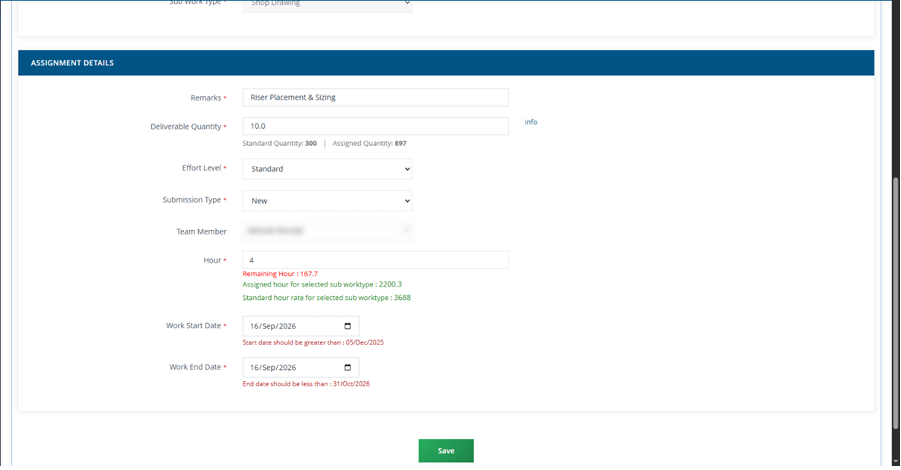
Once the Project Manager clicks Approve, the activity assignment page opens with the already submitted metadata. The Project Manager needs to enter specific details, such as:
• Remarks
• Deliverable Quantity
• Effort Level
• Submission Type
• Team Member
• Billable Hour
• Work Start Date
• Work End Date
Once data has been saved, the Project Manager has the option to modify the assignment activity and update any available details.
Once the activity has been logged, the Project Manager can only update the Billable Hours and End Date of the assignment.
Activities assigned will be available under Log Maintain › Work Assignment.
--> Important Notes:
Validation Rules:
Standard Rate Validation will be available and applied on correct trades and effort levels wherever applicable.
For Shop Drawing assignments, Quantity Validation will be applicable for recent projects.